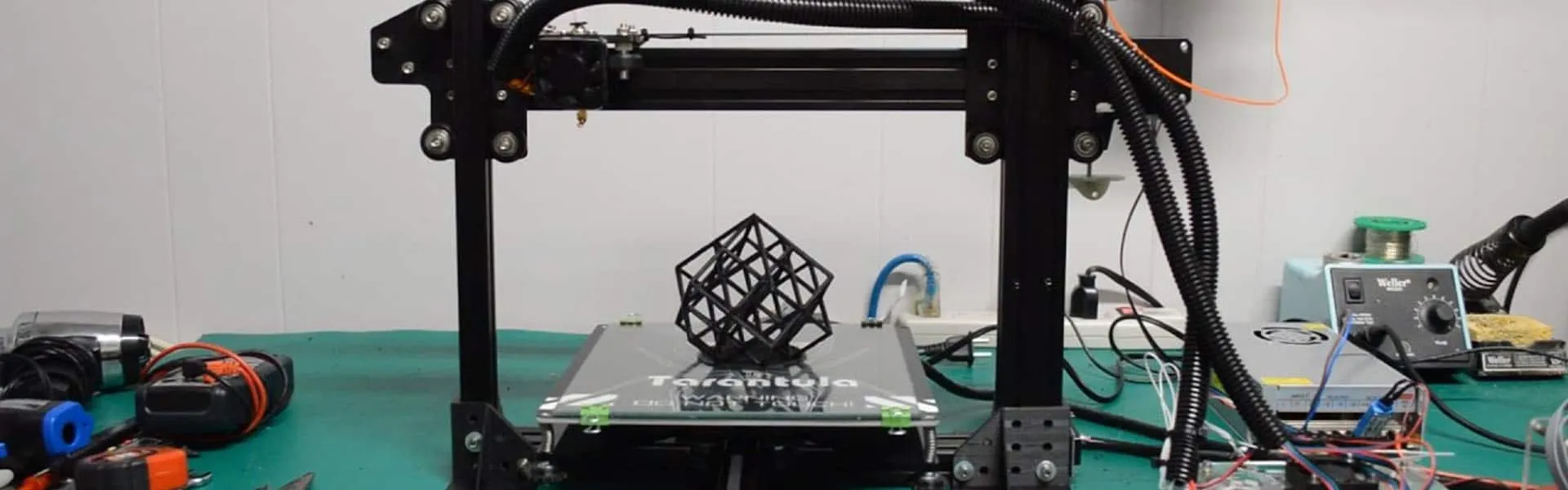
The Tevo Tarantula is a popular 3D printer known for its affordability and ease of use. However, like any 3D printer, achieving the optimal print speed while maintaining quality can be a challenge. This guide provides top 5 tips to help you maximize your Tevo Tarantula’s print speed. By understanding the factors that affect print speed and implementing the right adjustments, you can significantly reduce print times without sacrificing the quality of your prints. Whether you’re a beginner or an experienced user, these tips will help you get the most out of your Tevo Tarantula.
Understanding Tevo Tarantula Print Speed
Print speed on a Tevo Tarantula, or any 3D printer, is measured in millimeters per second (mm/s). It’s the rate at which the printer’s print head moves while laying down filament. However, achieving high print speeds isn’t always straightforward; it’s a delicate balance between speed and quality. Increasing the speed too much can lead to defects like layer separation, ringing, and inaccurate dimensions. Understanding the various factors impacting print speed is the first step towards optimization. These factors include hardware capabilities, filament properties, and software settings. Each component and setting plays a crucial role in how fast and accurately your Tevo Tarantula can print. Mastering these elements enables you to fine-tune your printer for optimal performance.
Factors Affecting Print Speed
Several factors influence the print speed of your Tevo Tarantula. These factors are interconnected, and adjusting one often necessitates changes in others to maintain print quality. Ignoring these elements can lead to subpar prints, wasted filament, and frustration. Taking the time to understand these factors can result in significant improvements in your printer’s performance. Let’s explore these elements in detail.
Nozzle Temperature

Nozzle temperature is critical for melting the filament properly. If the temperature is too low, the filament won’t flow smoothly, leading to under-extrusion and slower print speeds. If the temperature is too high, the filament may become runny, resulting in stringing and poor print quality. Different filaments require different temperatures; for example, PLA typically prints around 190-220°C, while ABS often requires 230-250°C. Experiment with different temperatures within the filament’s recommended range to find the optimal balance between flow and quality. This adjustment directly influences the speed at which the filament can be extruded and the quality of the final print.
Bed Temperature
Bed temperature affects how well the first layer adheres to the print bed. Proper adhesion is crucial to prevent warping and lifting, which can ruin a print and slow down the process. The bed temperature should be set according to the filament type. For example, PLA usually needs a bed temperature of around 50-60°C, while ABS requires 80-110°C. Ensure the bed is level and clean to further aid adhesion. Adjusting bed temperature ensures a solid foundation for your print, enabling higher speeds without compromising the print’s initial layers. This helps your print stick and reduces the likelihood of detachment during faster print runs.
Filament Type
The type of filament you use significantly impacts print speed. Some filaments, like PLA, are easier to print with and can handle faster speeds. Others, like ABS or PETG, might require slower speeds and more precise temperature control. Different filaments have varying melting points, flow characteristics, and cooling requirements. PLA is generally more forgiving and can print at higher speeds than ABS, which is prone to warping. Consider the filament’s properties when setting your print speed to achieve the best results. Selecting the appropriate filament will dictate how fast and reliable your prints can be, making the choice of material very important. Check the specific recommendations for your filament to determine the appropriate print settings.
Optimizing Print Speed for Your Tevo Tarantula
Optimizing print speed involves adjusting settings within your slicing software and potentially upgrading your printer’s hardware. These adjustments require a good understanding of how each setting influences the printing process. Finding the right balance between speed and quality is essential. Experimentation and iterative improvements are key to achieving the best results. The following sections provide insights into how to fine-tune your slicer settings and upgrade components for improved performance.
Slicing Software Settings
Slicing software like Cura or PrusaSlicer plays a crucial role in controlling print speed. The software translates 3D models into instructions for the printer. Several settings directly impact print speed, and it’s essential to understand how to adjust these settings to achieve your desired results. The correct settings are necessary for both speed and quality, and these are usually achieved by a combination of adjustments. Proper configuration of these settings can make a significant difference in your print times. The following settings are among the most important ones to consider.
Layer Height
Layer height is a fundamental setting that affects both print speed and quality. A larger layer height allows for faster printing because the printer deposits more material with each pass. However, larger layer heights can result in a loss of fine details and visible layer lines. Conversely, smaller layer heights produce smoother, more detailed prints but take longer to complete. For faster prints, consider increasing the layer height, but monitor the print quality closely. Balance this adjustment carefully to get the best mix of speed and detail. It is crucial to test different layer heights to determine the optimal value for your specific model and needs.
Print Speed

The print speed setting directly controls how fast the print head moves. Increasing the print speed will reduce print times, but you must balance it against print quality. Start with a moderate print speed and gradually increase it, monitoring the print for issues such as layer shifting, under-extrusion, or ringing. These issues mean the print speed is too fast. Adjust the speed until you find the maximum setting that still produces high-quality prints. The optimal print speed will vary depending on your printer’s configuration, the filament used, and the complexity of the model. Experimentation is critical to find the perfect settings for your print jobs.
Acceleration and Jerk Settings
Acceleration and jerk settings control how quickly the print head can change its speed and direction. Higher acceleration and jerk settings can make the printer move faster, but excessive values can lead to vibrations and quality issues. Adjust these settings cautiously to find a balance between speed and stability. Jerk settings determine the speed change at corners, affecting how smoothly the printer transitions between movements. Acceleration settings impact how quickly the printer reaches the set speed. Fine-tuning these settings can improve both print speed and quality by minimizing vibrations and ensuring the printer moves efficiently.
Hardware Upgrades for Faster Printing
While software settings are crucial, upgrading your hardware can significantly boost print speed. Hardware upgrades enhance the printer’s capabilities, allowing it to handle faster speeds and higher temperatures. Several upgrades can contribute to improved print speeds and overall print quality. These upgrades provide better performance and durability, making your printer more efficient. Upgrading the extruder and hot end are particularly effective ways to enhance performance.
Extruder Upgrades

Upgrading the extruder can improve filament feeding, crucial for faster printing. A direct drive extruder, where the extruder motor is mounted directly on the print head, can offer better control and faster retraction speeds. A better extruder ensures consistent filament flow, which is vital for high-speed printing. Replacing the stock extruder with a higher-quality model can prevent under-extrusion and improve overall print quality. Consider upgrading to a dual-gear extruder for a more reliable and consistent filament feed, which helps the printer manage higher speeds and print with greater accuracy. This upgrade will increase print quality, helping you achieve the desired print speed.
Hot End Upgrades
A high-performance hot end can handle higher temperatures and faster printing speeds. Upgrading to an all-metal hot end can allow you to print at higher temperatures without degradation, enabling faster printing with certain filaments. A hot end with improved thermal characteristics can also lead to better heat management, reducing the risk of jams. Look for a hot end with efficient heat distribution and a high flow rate. This ensures that the filament melts quickly and consistently, allowing for quicker prints. The ability to print at higher temperatures can also open up a wider range of filaments you can use, offering even more flexibility.
Firmware Optimization
Firmware plays a vital role in controlling your 3D printer’s behavior. Optimizing your Tevo Tarantula’s firmware can improve print speed and overall performance. Updating the firmware and configuring specific settings can help you get the most out of your printer. Firmware updates often include performance enhancements, bug fixes, and new features that improve the printing experience. This section guides you through updating and optimizing your printer’s firmware for better print speeds and quality.
Updating Firmware

Keeping your Tevo Tarantula’s firmware up-to-date is essential for optimal performance. Check the manufacturer’s website or online communities for the latest firmware versions. Updating the firmware often involves connecting your printer to your computer and using specific software to upload the new firmware. Before updating, back up your current firmware settings to revert if something goes wrong. The update process can improve print speed, stability, and overall reliability by incorporating performance enhancements and bug fixes. Ensure you follow the manufacturer’s instructions to avoid any issues during the update process. Regular updates often fix issues and may provide new features.
Configuring Firmware Settings
After updating the firmware, you can adjust various settings to optimize print speed. Accessing and modifying these settings typically involves connecting to the printer via USB or through an interface. Key settings include acceleration, jerk, and steps/mm. Fine-tuning these parameters can improve print quality and speed. You can configure settings to match your hardware upgrades and printing preferences. Refer to online guides and forums to find recommended settings for your printer and the specific filament you’re using. Take note of the current settings before making changes. The best approach is to make small adjustments and test prints to see how each change impacts your print results. Regularly review and adjust your firmware settings to maintain optimal performance.
Troubleshooting Print Speed Issues
Even after implementing optimizations, you may encounter print speed issues. Troubleshooting is an important step to resolve problems and ensure the printer operates at its best. Common problems include poor print quality, under-extrusion, and layer shifting. Diagnosing and solving these issues involves a methodical approach. Identify the root causes of the problems and implement appropriate solutions. The following sections offer insight into identifying and resolving common problems that can affect print speed.
Common Problems and Solutions

Several common problems can limit print speed. Under-extrusion, where the printer isn’t extruding enough filament, can lead to weak layers and poor print quality. Layer shifting, where layers are misaligned, can result from the print head moving too quickly or loose belts. Stringing, where thin strands of filament appear between parts of the print, is often caused by incorrect temperature or retraction settings. Addressing these problems may involve adjusting print settings, calibrating the printer, or upgrading hardware. Inspecting the printer’s components can reveal other issues that affect print speed. Understanding these problems and their solutions helps you maintain print quality while optimizing speed. Regularly review and address these issues to keep your printer operating at peak performance.
Calibration and Fine-tuning
Calibration and fine-tuning are essential steps to ensure your Tevo Tarantula prints at optimal speeds while maintaining quality. This involves leveling the print bed, calibrating the extruder, and adjusting various settings. Proper calibration reduces common printing problems like warping and poor layer adhesion. Following calibration, you can fine-tune the printer by adjusting settings such as flow rate, retraction distance, and print speed. Conduct test prints to evaluate the results and adjust settings iteratively. Continually monitor your printer’s performance to identify any issues. Regular calibration and fine-tuning contribute to consistent print quality, efficiency, and improved print speeds. Regular maintenance can make your printer far more reliable and effective, ensuring all prints are as close to perfect as possible.
In conclusion, achieving optimal print speed on your Tevo Tarantula requires understanding the factors that affect print speed and implementing the right adjustments. By focusing on the 5 key tips discussed – nozzle temperature, bed temperature, filament type, slicing software settings, and hardware upgrades – you can significantly improve print times without sacrificing quality. Remember to start with the basics, experiment with different settings, and continuously fine-tune your printer for the best results. With patience and persistence, you can unlock the full potential of your Tevo Tarantula and enjoy faster, more efficient 3D printing. Happy printing!